RKDevelopTool-GUI
RKDevelopTool GUI
| 中文 | English |
RKDevelopTool GUI is a graphical front-end for Rockchip’s official rkdeveloptool. It provides an intuitive interface to perform firmware flashing, partition management, and device debugging tasks without using the command line.
GitHub: https://github.com/gahingwoo/RKDevelopTool-GUI
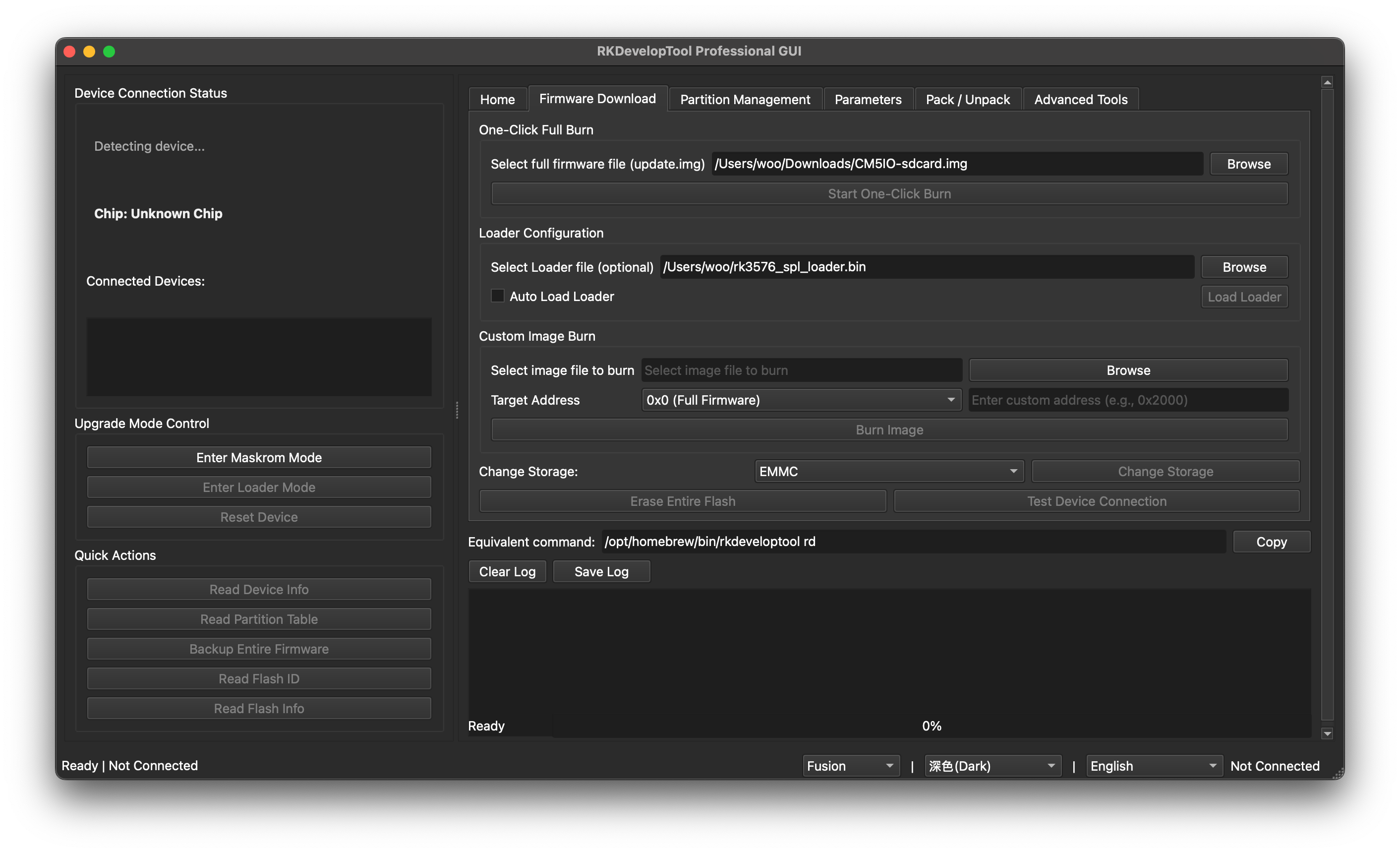
RKDevelopTool GUI Main Interface
Features
Device Monitoring - Automatically detects connected Rockchip devices and displays their current mode (Maskrom or Loader).
One-Click Firmware Flashing - Simplifies the firmware flashing process. Just select your update.img file and click to begin.
Partition Management - Read device partition tables and perform individual operations on specific partitions: flashing, backup, or erasing.
Mode Switching - Quick buttons to enter Maskrom or Loader mode, and to reboot the device.
Real-time Logging - View command execution logs and flashing progress in real time.
Multi-language Support - Available in both Chinese and English.
Theme Support - Automatic system theme detection with manual switching between light and dark modes. Supports multiple styles: Fusion, Windows, macOS, and others.
Download (recommended)
Prebuilt packages are attached to every GitHub Release.
They bundle rkdeveloptool, so there is nothing else to install.
| Platform | File |
|---|---|
| macOS (Apple Silicon) | RKDevelopTool-GUI-arm64.dmg |
| Linux (portable, x86_64 / arm64) | RKDevelopTool-GUI-*-x86_64.AppImage / *-aarch64.AppImage |
| Debian/Ubuntu (amd64 / arm64) | rkdeveloptool-gui_*.deb |
| Fedora/openSUSE (x86_64 / aarch64) | rkdeveloptool-gui-*.rpm |
macOS note: the app is not notarized yet, so on first launch macOS may say it “cannot be opened”. Right-click the app → Open → Open, or run
xattr -cr /Applications/RKDevelopTool-GUI.app.
Install via pip
Install a standard Python wheel — this adds the rkdeveloptool-gui command to
your PATH. Unlike the prebuilt packages above, the wheel does not bundle
rkdeveloptool, so install that separately (see Running from source
for the requirements).
git clone https://github.com/gahingwoo/RKDevelopTool-GUI
cd RKDevelopTool-GUI
pip install .
rkdeveloptool-gui
Or build a redistributable wheel and install it anywhere:
pip install build
python -m build --wheel
pip install dist/rkdeveloptool_gui-*.whl
Running from source
If you run from source instead of a prebuilt package, you need:
- Python 3.8 or later, PySide6 (Qt 6 for Python)
rkdeveloptoolinstalled and on PATH — verify withrkdeveloptool --version(installation instructions)
From Source
git clone https://github.com/gahingwoo/RKDevelopTool-GUI
cd RKDevelopTool-GUI
pip install -r requirements.txt
python rkdevtoolgui.py
Build Standalone Executable
python build_nuitka.py
./rkdevtoolgui
Arch Linux
Available in AUR:
yay -S rkdeveloptool-gui
Or through a community repository:
sudo pacman -S rkdeveloptool-gui
For the packaging status across more distributions, please refer to Repology
Alternatively, you can install it via a self-hosted package repository
Usage
Basic Workflow
- Connect your Rockchip device via USB
- The application will automatically detect the device and display its status
- Select the operation you need: firmware flashing, backup, or partition management
- Review the settings and confirm to proceed
Firmware Flashing
- Navigate to the “Firmware Download” tab
- Click “Browse” and select your update.img file
- Click “Start One-Click Burn” to begin
- Wait for the process to complete (progress bar shows current status)
Partition Management
- Go to the “Partition Management” tab
- Click “Read Partition Table” to retrieve partitions from the device
- Select a partition and choose your operation: flash, backup, or erase
- Confirm and wait for completion
Theme and Style Selection
The status bar at the bottom provides quick access to:
- Style selector: Choose between Fusion, Windows, macOS, and other available styles
- Theme selector: Switch between Automatic, Dark, and Light themes
- Language selector: Choose between Chinese and English
Important Notice
This software is a graphical wrapper around rkdeveloptool. Firmware flashing is inherently risky and may result in device bricking or data loss if not performed correctly.
Before using this tool:
- Ensure you have a backup of important data
- Verify that your device has sufficient battery
- Understand the implications of each operation
- Consult device-specific documentation if needed
The author is not responsible for any device damage, data loss, or other consequences resulting from the use of this software.
Contributing
Contributions are welcome. Please feel free to submit issues or pull requests.
License
See LICENSE file for details.
Support
For issues, questions, or feature requests, please visit: https://github.com/gahingwoo/RKDevelopTool-GUI/issues